
Stop Interface
The Stop Interface algorithm allows you to stop the interface execution by comparing the query result with a predefined value.
The table below illustrates the example of this algorithm:
| Query Example | Compared Value | Result |
|---|---|---|
|
SELECT 'Users' FROM SCHEMA WHERE ISActive= |
0 |
Stop the interface execution |
In the example above the system will stop the interface, if no active users could be found in the schema.
To configure this manipulate step, follow the instructions below:
- In the Admin Navigation tree, select Interfaces > InterfaceName > Tasks > TaskName > Steps.
- On the toolbar, click New >New Manipulate Step.
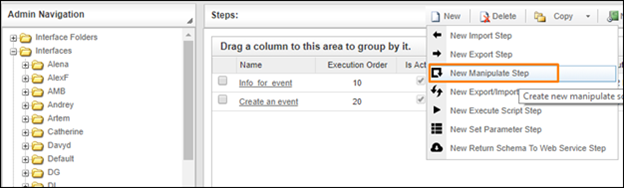
Creating a New Manipulate Step
- Navigate to the Execution section and select Stop Interface.

Execution Section
- In the Stop Interface work area, fill in the following fields:
| Fields | Description |
|---|---|
|
Name |
Provide a distinctive name for this step. |
|
Is Active |
Select the check box to engage the scheduler for this step. |
|
Order of Execution |
Enter the order in which this step should be executed. |
|
Filter Expression |
Optional. Use this filed to filter data from the source database prior to inserting it into the Schema table. |
|
Sort Expression |
Optional. Use this field to sort data from the source database prior to inserting it into the Schema table. |
|
Stop interface execution if query failed |
Optional. If enabled, the system will stop any data manipulation if the query returns an error. |
|
Save Schema (enabled per interface) |
If selected, the schema is created for this step. |
|
Display error on log if interface stops |
Display the error in the transaction log if the interface stops. |
|
Return schema to web service |
If selected, the task’s Schema is returned to the web service that activated the interface. |
|
Compared value |
The value that is compared to the query result. |
|
Operator |
Defines whether the compared value should match or should not match the query result. |
|
Query |
The query that will manipulate data in an existing schema. In the query result, it is the value in the first column and in the first row that will be compared to the value specified in the Compared Value field. |
- Click the Save button.